Italki login – 3 checks to start lessons this week
Log into your italki account to access lessons, messages and booking; verify your email and payment method first (italki requires email verification). Table, traps and checklist included.

Some links in this article lead to partner services. If you make a purchase there, the site may receive a commission; this does not affect the price or our assessment.
italki login gives you direct access to your lessons, teacher messages and scheduled bookings on the italki platform. The site requires email verification for new accounts and links bookings to your account calendar (see italki Help Center), so confirm your primary email and payment method before booking. Below you get a quick table comparing the main italki options, the three checks to do on login, traps to avoid and a short checklist for booking your first lesson.
In short
Verify email and phone – follow the italki first lesson trial signup flow to confirm identity and unlock booking.
Check lesson lengths and teacher type – choose 30 or 60 minute lessons and decide between Professional or Community tutors.
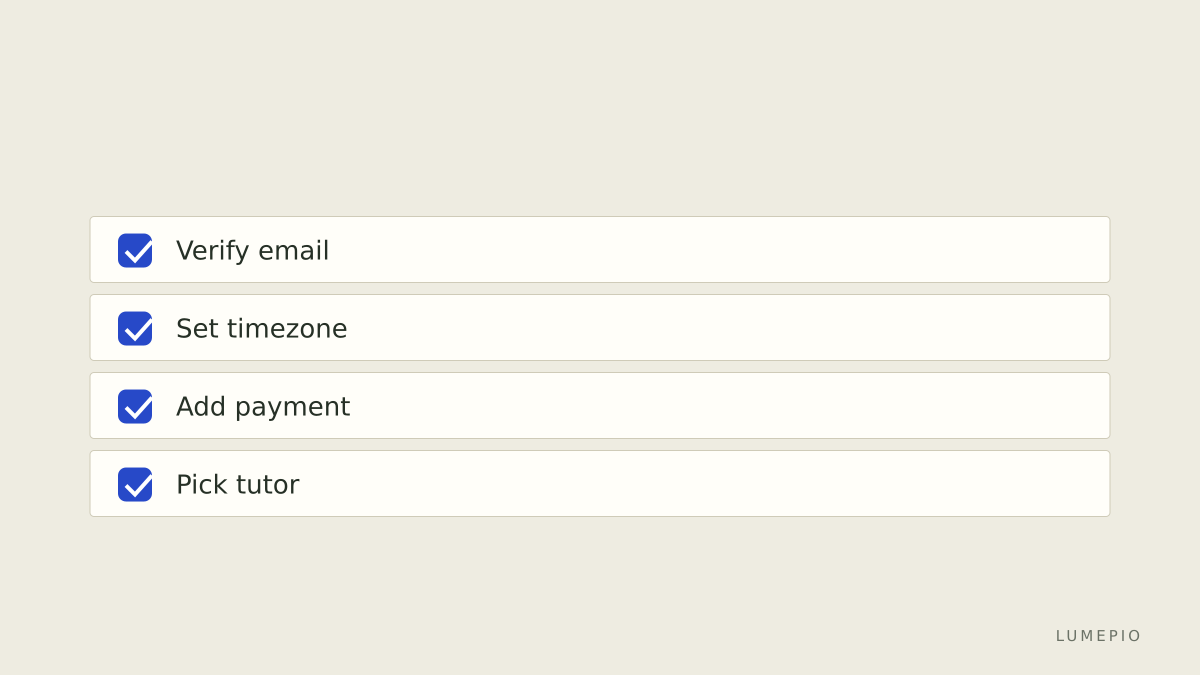
Confirm payment method and time zone – add a card or PayPal and set the timezone in Settings so scheduled lessons appear correctly on your calendar.
How do I log in and what exactly must I check first?
Sign in with the email you used to register or with Google/Facebook single sign-on; the first concrete check is email verification, required by italki for new accounts per their support pages. After signing in, open Settings > Account and confirm your timezone match and primary email; if the timezone is wrong, scheduled lessons will show at the wrong local time. Also check Profile > Payment Methods: add a card or PayPal before you book because some teachers require prepayment and the platform will not let you schedule without a valid payment method on file.
Which italki options should I compare right after login?
Use the comparison table below within your first session. Pick between Professional tutors (certified teachers) and Community tutors (conversational practice). Key numbers to watch are standard lesson lengths (30 or 60 minutes) and teacher response time indicated on their profile. The main drawback of italki is variable teacher quality across the marketplace; an alternative to consider is Preply if you want platform-managed trial lessons (no link provided for that alternative here).
Option | Who it suits | Key number | Main drawback |
|---|---|---|---|
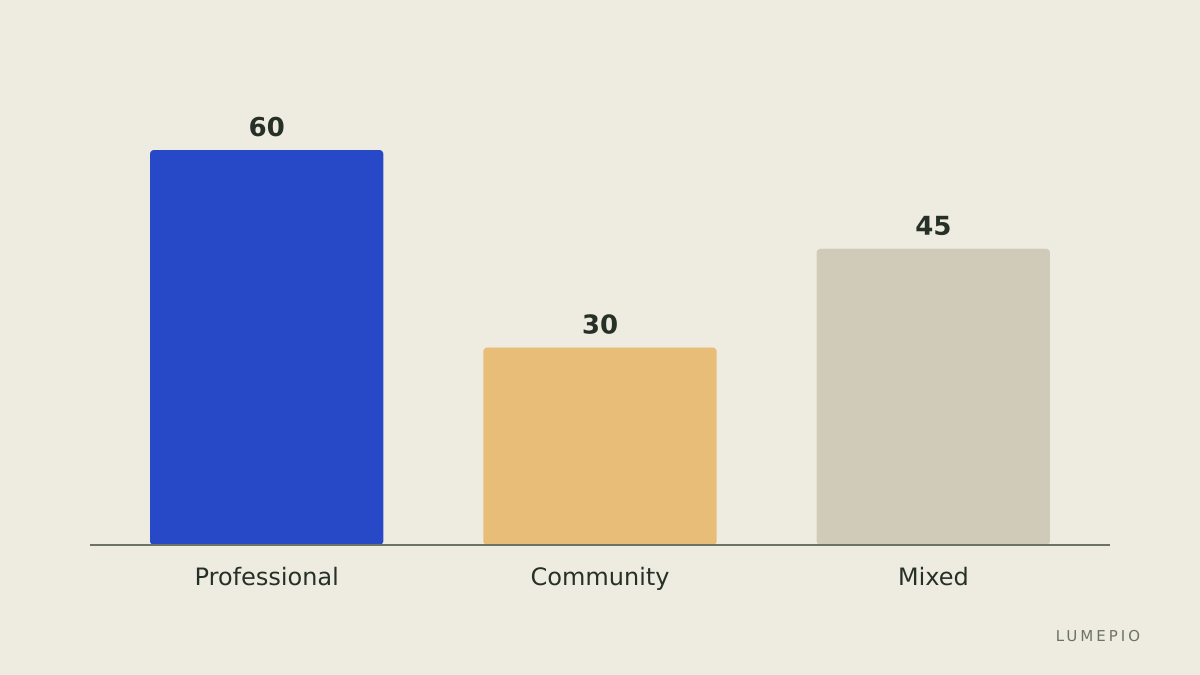
italki Professional tutor | learners wanting structured lessons with certified teachers | 60 min common length | higher hourly rates and fewer short-slot options |
italki Community tutor | learners seeking conversation practice, cheaper per minute | 30 min common length | quality varies by tutor experience |
italki mixed approach (trial + package) | learners who want both structure and conversation | 1 trial lesson then packages | requires checking multiple tutor profiles for fit |
Each italki option above links back to the platform pages; use the italki first lesson trial flow to open the first lesson slot and confirm trial rules.
What common login problems stop booking immediately?
If you can’t book after login, check three specifics: unverified email, expired or missing payment method, and timezone mismatch. Email verification shows a pending badge in Settings; request a new verification link if it expired. Payment failures often come from cards blocked for international transactions; try PayPal or a different card. Timezone errors occur when the browser or device provides a local offset different from the timezone in your profile; set the timezone manually in Settings to match your local clock.
How should I choose the first teacher and lesson length after logging in?
Open a teacher profile and read the introduction, lessons offered and student reviews; pick a 30 minute trial if you want fast feedback, or a 60 minute trial for a full structured session. Use response time on the profile as a decision rule: if response < 24 hours, expect faster messaging to confirm pre-lesson materials. For trial selection, book a tutor who lists trial policies in the lesson description; then confirm the lesson time via platform messaging after booking.
What traps should you avoid when booking from the dashboard?
Never assume the listed time is your local time; check the scheduled lesson card for the timezone before confirming. Avoid teachers who require external payments; keep all payments through italki to retain platform protections. If a teacher requests materials in advance, confirm receipt via the italki message thread; save that message screenshot as proof of agreed materials or refunds.
FAQ
Q: Can I log in with Google or Facebook instead of an email account? A: Yes, you can log in via Google or Facebook as an alternative to email; you still must confirm your account details in Settings and verify email if requested, to access booking and messaging features.
Q: I forgot my password – how do I regain access? A: Use the "Forgot password" link on the sign-in page to request a reset; the reset link is sent to your registered email and expires after a short time, so check spam folders and act promptly.
Q: My scheduled lesson shows the wrong time after login – what now? A: Edit the timezone in Settings to match your device clock; resave the lesson if necessary. If the teacher is in a different time zone, confirm the agreed slot in the italki message thread to avoid confusion.
Q: Does italki require payment before the lesson? A: Payment depends on tutor settings; many teachers require payment at booking through the platform, so add a valid card or PayPal in Payment Methods before booking to prevent failed reservations.
Q: Can I use a mobile device to sign in and join lessons? A: Yes, use the italki app or the mobile web login; ensure your device clock and timezone settings match your italki profile and test audio before the lesson start.
Decision rule – one short sentence If you want fast conversational gains in weeks, log in, verify email, pick a 30 minute Community tutor trial, and book three sessions over seven days; use italki first lesson trial to secure the initial slot and compare tutor fit.
Sources
https://www.italki.com/
https://support.italki.com/hc/en-us
https://preply.com/






Start the conversation.