Backing Up Windows 11 Properly: The 3-2-1 Rule and the Software That Supports It
Why the best backup software for Windows 11 is whichever tool lets you follow the 3-2-1 rule, what Windows already includes, where the built-in tools stop, and a weekly rhythm that ends with a restore you have actually tested.

Some links in this article lead to partner services. If you make a purchase there, the site may receive a commission; this does not affect the price or our assessment.
People searching for the best backup software for Windows 11 usually expect a ranked list. This guide takes a different route, because the ranking matters far less than the strategy behind it. A mediocre tool used according to a sound plan will save your files; the most polished tool used to make a single copy on a drive that never leaves the desk will not. So we start with the plan, look at what Windows 11 already provides, and only then ask which extra software, if any, fills the gaps.
What the 3-2-1 rule actually protects against
The 3-2-1 rule comes from photographers and archivists and was later adopted by security agencies. The US-CERT paper on data backup options states it plainly: keep three copies of any important file (one primary and two backups), store them on two different media types, and keep one copy offsite.
Each number answers a specific failure.
Three copies protect against the ordinary case where a backup itself is bad. Drives fail silently, files get corrupted before they are copied, and a single backup gives you no second chance.
Two media types protect against a failure mode shared by identical devices. Two external hard drives from the same batch can die of the same fault; a hard drive plus cloud storage, or a hard drive plus a NAS, do not share it.
One copy offsite protects against the events that take out your whole room: fire, flood, theft, and increasingly ransomware, which will encrypt anything the infected computer can reach, including an attached backup drive.
The rule says nothing about software. That is the point. Any tool that helps you keep three copies on two media with one of them somewhere else is a valid implementation.

What Windows 11 already gives you
Windows 11 is better equipped than people assume, and the honest starting position is to see how far the built-in tools take you before spending money.
The Windows Backup app. This is the modern, Microsoft-account-based option. According to Microsoft's documentation, it backs up the Desktop, Documents, Pictures, Videos and Music folders through OneDrive, along with your list of installed apps, settings, Wi-Fi profiles and saved credentials. When you set up a new PC and sign in with the same personal Microsoft account, Windows offers to restore that backup during setup. Two limits matter: a free Microsoft account includes 5 GB of OneDrive storage at the time of checking, which most photo libraries exceed quickly, and the app requires a personal account rather than a work or school one.
File History. The older per-file tool copies versions of your user folders to a second drive on a schedule. It is good at the "I overwrote the wrong document on Tuesday" problem and weak at "my system drive is dead".
Backup and Restore (Windows 7). Still present in Windows 11, this legacy tool can create a full system image. It works, but it is no longer developed, has limited scheduling, and restores can be fussy about disk sizes.
Put together, the built-ins give you a cloud copy of your key folders (a second medium and offsite in one step) and a way to make a local system image. What they do not give you is a comfortable, scheduled, verifiable full-system image with reliable rescue media. That is the gap third-party imaging tools fill.
Where dedicated backup software fits
The one job Windows does poorly is the full-disk image: a single file that contains your Windows installation, programs, settings and data, restorable to a blank disk from a bootable USB stick. That is the copy you want when the system drive fails or ransomware makes the machine untrustworthy.
Dedicated imaging tools do this with scheduling, incremental updates so that only changes are written each time, and rescue media that you create in advance. The free edition of AOMEI Backupper is a representative example of this category: it covers system, disk, partition and file backups, daily, weekly or monthly schedules, incremental runs, and bootable rescue media, on Windows 7 through 11. Features such as restoring an image onto a different PC, differential backups, cloud targets and protection of the backup files themselves against ransomware are reserved for the paid Professional tier.
The limitation worth stating clearly is that the free edition alone does not complete 3-2-1. It produces a good local image on one medium; the offsite copy and the second medium still come from you, whether through OneDrive, a rotated drive kept elsewhere, or a NAS. And the free edition's interface carries upgrade prompts that some users find distracting. Macrium Reflect is the obvious alternative in the same category; it no longer offers a free edition, but its paid Home version is mature and includes protection for backup files.
A weekly rhythm you can keep
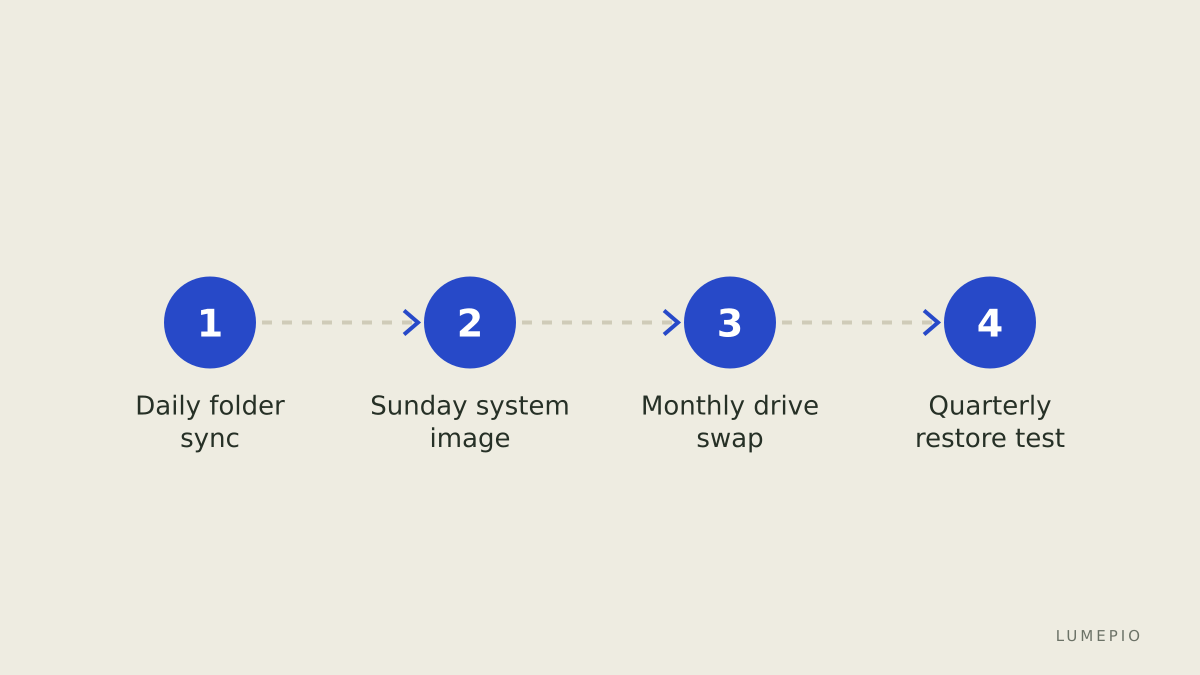
Backup plans fail when they depend on remembering. The schedule below assumes one laptop or desktop, one external drive that lives next to the computer, one second drive that lives somewhere else, and OneDrive or another cloud account for the key folders.
Day | Task | Tool | Copy it produces |
|---|---|---|---|
Every day | Key folders sync automatically | Windows Backup / OneDrive | Copy 2, offsite, cloud medium |
Sunday evening | Scheduled full or incremental system image | Imaging tool | Copy 3, local, external drive |
First Sunday of the month | Swap the external drive with the one kept elsewhere | You | Turns copy 3 into an offsite copy |
Every quarter | Restore one file and boot the rescue media | Imaging tool | Confidence that the copies work |
The swap is the step people skip, and it is the one that turns a convenience into a real 3-2-1 plan. Two identical external drives, labelled A and B, one at home and one at a relative's house or in a desk at work, satisfy the offsite requirement with no subscription. If the drives are the same model, the cloud copy of your folders is what supplies the second medium type.
The restore test nobody does
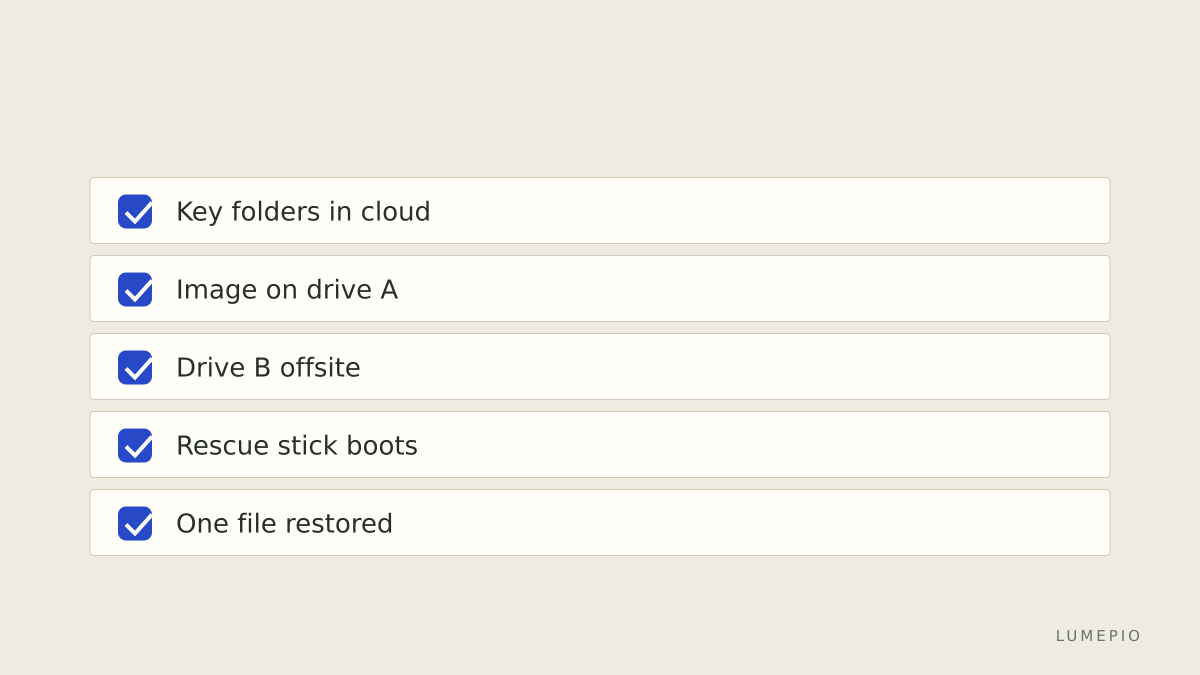
A backup you have never restored from is a hypothesis. The quarterly test in the table above does not have to be dramatic. Two exercises cover almost everything.
Restore one file. Pick a document, restore last month's version from File History or from the imaging tool to a different folder, and open it. This proves the archive is readable and that you know where the restore button is.
Boot the rescue media. Insert the USB stick you created, restart, and confirm the recovery environment loads and can see your backup drive. Stop there; you do not need to overwrite anything. This proves that when the system drive fails, you will not be discovering a missing driver at the worst possible moment.
If either step fails, you have learned something valuable at zero cost. Rescue media in particular tends to break after major Windows updates or when you change to a different USB stick, so recreate it after each big update.
Choosing without the ranking
If a ranked answer is still wanted, here is the decision in three lines. Start with the built-in Windows Backup app for your folders, because it gives you an offsite copy on a second medium for free up to the storage limit. Add an imaging tool for the full-system copy; the free edition of AOMEI Backupper is enough for that job on a single machine, and Macrium Reflect Home is a strong paid alternative. Then buy two plain external drives and rotate them. The software is the smallest part of the plan, which is exactly why it should not be the first thing you research.
Sources
- https://www.cisa.gov/sites/default/files/publications/data_backup_options.pdf
- https://support.microsoft.com/en-us/windows/back-up-and-restore-with-windows-backup-87a81f8a-78fa-456e-b521-ac0560e32338
- https://support.microsoft.com/en-us/windows/backup-and-restore-in-windows-352091d2-bb9d-3ea3-ed18-52ef2b88cbef
- https://www.aomeitech.com/ab/standard.html