Movavi login – 3 checks before you sign in (2026)
Direct steps to access your Movavi account and handle license activation; includes the activation limit (two machines) with a support source and a compact checklist to act now.
Some links in this article lead to partner services. If you make a purchase there, the site may receive a commission; this does not affect the price or our assessment.
To sign in to Movavi use your Movavi Account page at account.movavi.com with the email you used to purchase or register; if you bought a perpetual license, Movavi allows activation on two machines per license according to their activation rules (source: https://www.movavi.com/support/how-to/activate-software.html). Below you get a short checklist, a comparison table of sign-in routes, three common sign-in problems with fixes, and a final decision rule for which method to choose.
In short – 3 points to act now:
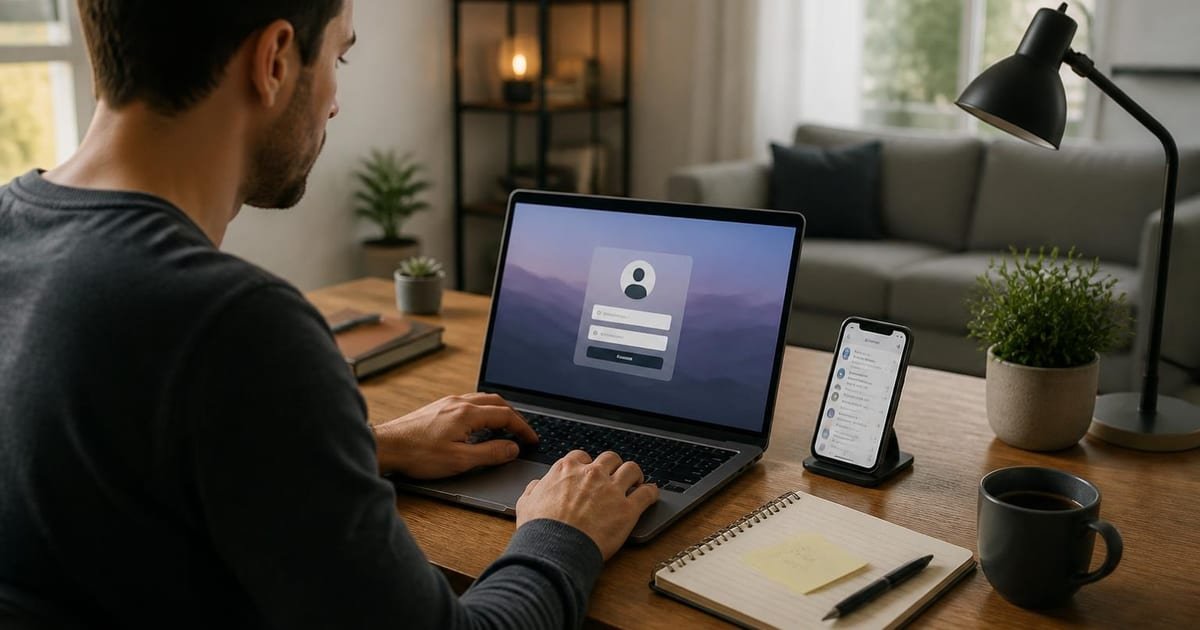
Use the Movavi Account page to sign in with your purchase email and password; use the account recovery tool if you no longer have the password (account page: account.movavi.com).
Check license activations – a single perpetual license allows activation on two machines; if you need more seats, choose a multi-seat plan or cloud option.
Prefer the app sign-in when working offline, use the web account to manage licenses and subscriptions.
Which sign-in route should I use to open an app quickly?
Open the desktop app and choose Sign in with email and password if you need the editor immediately. The desktop route stores a local activation token after sign-in so you can work offline for stretches without re-entering credentials; this suits editors who move between an office laptop and a home PC. If your goal is license management instead of immediate editing, go to the Movavi Account page at account.movavi.com to view purchase records and deactivate old activations. When you purchase a product, keep the exact purchase email handy; the activation system matches licenses to that email. 
How to recover access if you forgot the password or email
If you forgot your password use the password reset link on account.movavi.com to receive a reset email to the address used for purchase; follow the emailed steps to set a new password. If you no longer have access to that email, locate your purchase confirmation or invoice and note the exact buyer email shown there, then contact Movavi support with the invoice number and order details. Keep your purchase confirmation PDF or the store order number, because Movavi support asks for proof of purchase before moving or reassigning activations.
Comparison table – three practical sign-in options
option | who it suits | key number | main drawback |
|---|---|---|---|
Sign in on account.movavi.com and manage activations (Movavi Video Suite Standard plan – manage two activations) | Users who need to move licenses between machines | 2 activations per perpetual license (source: Movavi support page) | Web-only management; you still must sign in on each device to activate locally |
Sign in inside the desktop app | Editors who work offline or without constant web access | Local activation token retained for offline use | Requires initial internet connection and correct purchase email |
Use password reset via email | Users who forgot password but keep purchase email | Reset link lifetime determined by email delivery | If you lost access to the email, recovery needs invoice or support intervention |
What common sign-in problems occur and how to fix them
Problem: Sign-in fails with "wrong email or password." Fix: Confirm the email that received the purchase confirmation; try the password reset on account.movavi.com. Use the exact buyer email from your invoice rather than alternate addresses. Problem: Activation limit reached. Fix: Deactivate the product on an old device via the account page or uninstall and use the Deactivate function inside the app before activating elsewhere. If you cannot reach the old machine, collect the order number and contact support with the invoice. Movavi documents two activations per perpetual license on their support page. Problem: No confirmation email after reset. Fix: Check spam and filters, then wait 10 minutes; if still missing, request support and provide your order ID.
Which option should I pick if I need multiple seats for a team?
If you need more than two active seats per user, choose a license plan that supports multiple seats or buy multiple perpetual licenses; the per-license activation limit makes a single license impractical for teams. For small teams, consider a business or multi-seat purchase from Movavi or buy separate licenses per user. One honest limitation of Movavi is that perpetual licenses tie activations to email and machine limits, which complicates frequent device swaps; an alternative is a cloud-based collaborative editor if you require real-time multi-user collaboration, though that may cost more per month.
FAQ
Q: Where do I enter my license key for activation? A: Enter the license key inside the desktop app under Help > Activate Product, or paste it at account.movavi.com for web-based activation. Keep the purchase email and the key file accessible in case you need to move the activation.
Q: Can I use the same Movavi account for desktop and cloud services? A: Yes, the same Movavi Account email and password grant access to Movavi services tied to that account, while some cloud features may require a subscription plan in addition to the desktop license.
Q: What if I cannot deactivate the old device because it is lost? A: If the old device is lost, gather the original order confirmation with the buyer email and order ID, and contact Movavi support for assistance reassigning activations; proof of purchase is required.
Q: Is two activations per license a strict limit? A: The standard perpetual license activation limit is two machines per license according to Movavi support; contact support to discuss exceptions or volume licensing for larger needs (source: https://www.movavi.com/support/how-to/activate-software.html).
Decision rule – one-sentence: If you edit on one or two machines, sign in via the desktop app and manage activations on account.movavi.com; if you need more seats, buy separate licenses or a multi-seat plan.
Sources:
https://www.movavi.com/
https://www.movavi.com/support/how-to/activate-software.html
https://account.movavi.com/






Start the conversation.