Pdfelement download – 3 checks before you pay
Download PDFelement safely and pick the right plan: three concrete checks, a comparison table with prices, key traps, and a short decision rule for daily PDF tasks.

Some links in this article lead to partner services. If you make a purchase there, the site may receive a commission; this does not affect the price or our assessment.
Download PDFelement from Wondershare's official download page and use the 30-day trial or the clearly listed purchase options; the Windows individual plans start at $69.99 for a perpetual Standard license and higher for Pro features according to Wondershare's pricing page. The Windows installer is provided as a single executable on the official download page, and the trial places a watermark on saved files before purchase. Below you get a comparison table, three practical checks, and a checklist to decide which plan fits your daily tasks.
In short – Key takeaways:
Official download first – use PDFelement Standard download from Wondershare to avoid untrusted builds and get the trial installer (watermarks on trial saves).
Pick by feature – Standard handles editing and conversion; Pro adds OCR and redaction; Pro perpetual costs more but pays off if you need OCR daily.
License math – perpetual Standard listed at $69.99, Pro perpetual higher; if you need updates yearly, prefer subscription for continuous upgrades.
Alternative and limit – PDFelement lacks some advanced cloud workflow integrations; Adobe Acrobat is a full alternative with higher subscription cost.
Where to download PDFelement safely and what each file does
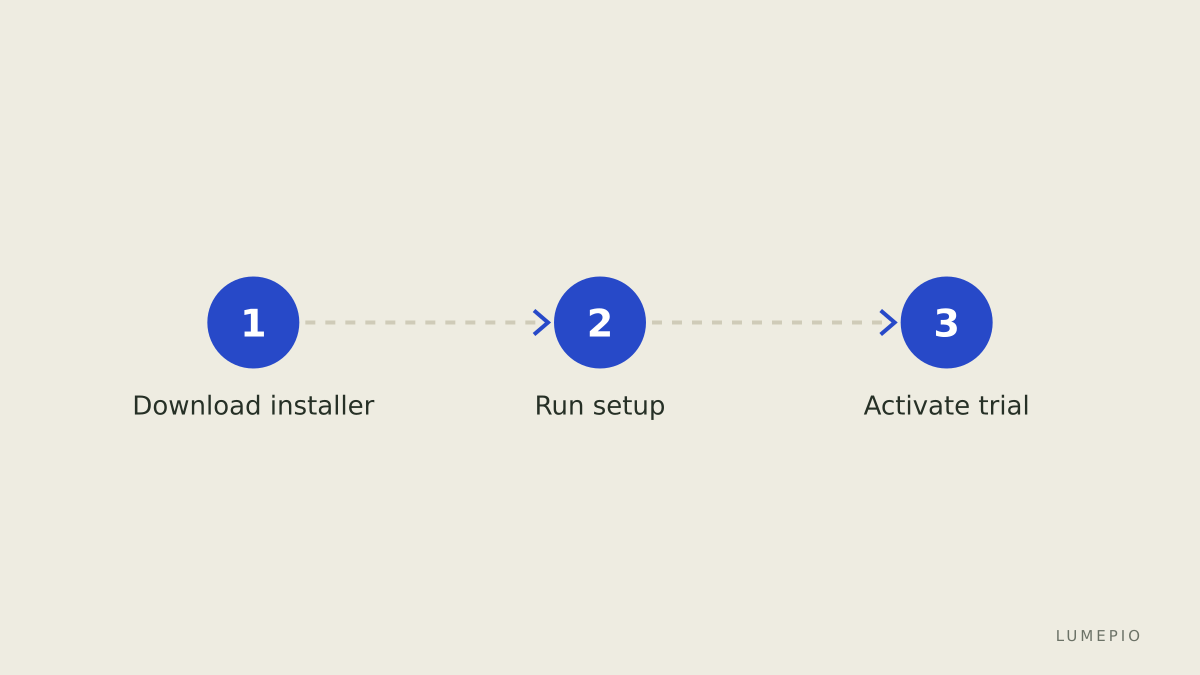
Download the installer from Wondershare's official download page to get the Windows or macOS executable and avoid third-party bundlers. The official download page provides an installer for Windows (.exe) and macOS (.dmg) and links to product documentation. After running the installer, the trial mode activates with full interface but saved files include a watermark; purchasing a license removes that watermark and unlocks export features. Use PDFelement Standard download when you only need daily editing and form filling.
Which plan fits a daily PDF workflow – quick comparison table
This table lists typical options, who they suit, the key number to check (price or feature), and the main drawback you must accept.
Option | Who it suits | Key number | Main drawback |
|---|---|---|---|
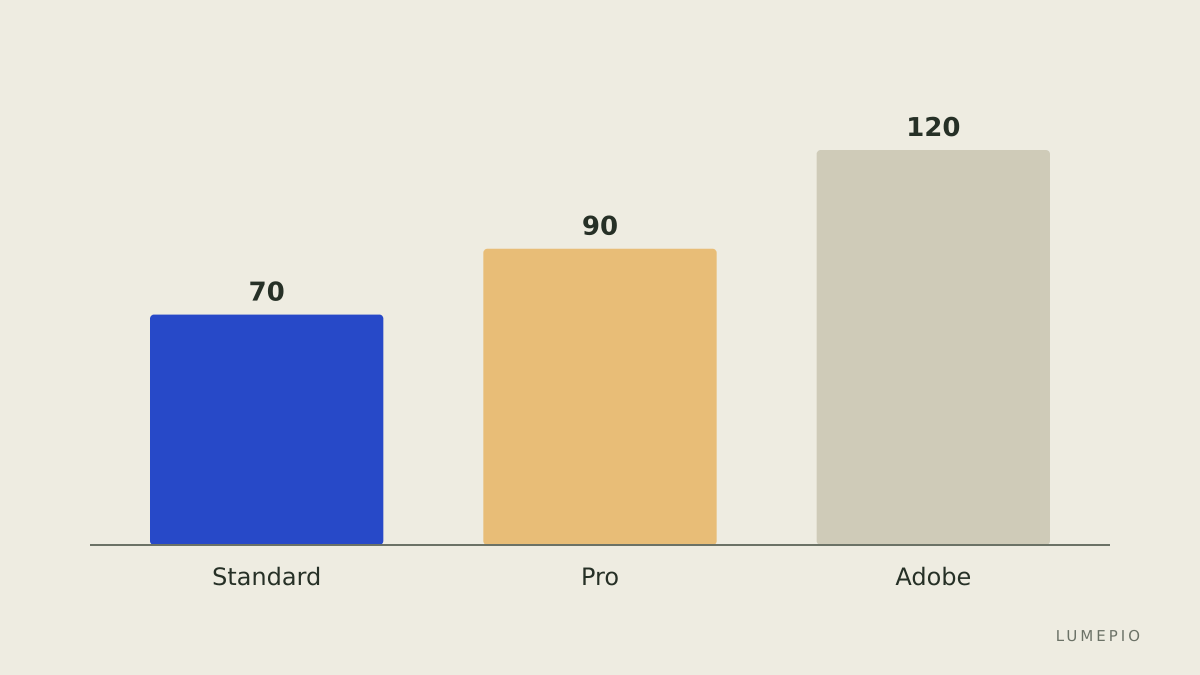
PDFelement Standard (perpetual) | Solo users who edit, sign, and convert PDFs | $69.99 perpetual (price source) | No advanced OCR or batch redaction |
PDFelement Pro (perpetual) | Users needing OCR, form data extraction | Higher perpetual price for Pro (see source) | More expensive upfront than Standard |
PDFelement Annual Subscription | Teams wanting updates and support | Annual fee billed yearly (see source) | Ongoing cost if you need updates |
Adobe Acrobat (subscription) | Power users needing deep cloud workflows | Subscription from Adobe pricing page | Higher subscription cost; more complex UI |
Links: the PDFelement product pages and pricing detail the exact current purchase options and feature lists. The table uses the official pricing pages as the primary source; check the plan that matches your daily volume of scanned pages, redactions, and batch tasks. One honest limitation of PDFelement is fewer native cloud workflow integrations compared with Adobe Acrobat; an alternative to consider is Adobe Acrobat.
How to choose by the task you do every day
If your daily task is editing text in PDFs and filling forms, choose PDFelement Standard and validate by opening three representative files and exporting to Word. If you scan receipts daily, choose PDFelement Pro for OCR and test OCR on a 2-page scan to verify accuracy. If you need server-side automation or cloud-native approvals, consider Acrobat or a dedicated cloud workflow tool because PDFelement focuses on desktop productivity. Always confirm the specific feature (OCR language support or redaction depth) on the product features page before buying.
How to install and activate without common mistakes
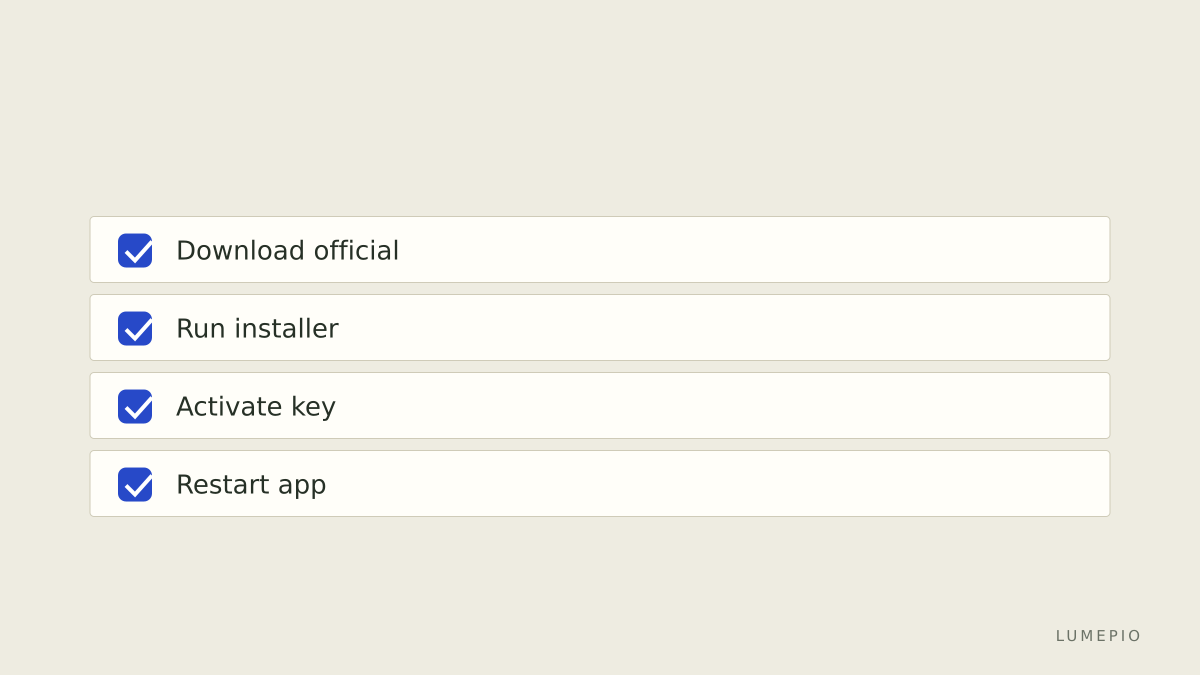
Download PDFelement Standard download for your OS, run the installer, and launch the app to start trial mode. Common mistakes: installing from a third-party site that bundles extras, entering a license key for a different OS, or not restarting the program after activation. If activation fails, copy the full license string from your purchase email and use the program's activation dialog; contact Wondershare support if the in-app activation reports a mismatch.
Pricing and licensing decisions that matter for daily use
Decide by frequency: if you work with hundreds of scanned pages monthly, Pro perpetual or subscription with OCR pays off; for occasional editing, Standard perpetual is cheaper. Compare perpetual versus annual: perpetual is a one-time cost but may lack major future upgrades, while annual includes updates but charges every year. Check the purchase page for exact numbers and current offers before payment.
FAQ about pdfelement download
Q: Where do I download PDFelement? A: Download PDFelement from Wondershare's official download page to get the correct installer for Windows or macOS. The official download page lists installers and system requirements, and the trial mode applies a watermark to saved files.
Q: Will the trial let me test OCR? A: The trial exposes the interface but may restrict some operations such as saving unwatermarked output; confirm OCR behavior on the features page and test with a short scanned file to see whether OCR is accessible in trial mode.
Q: Can I use a perpetual license on multiple devices? A: License terms vary by plan; perpetual licenses are commonly valid for one or a limited number of devices – check the license scope on the purchase page before buying.
Q: What is a common activation problem and its fix? A: Mismatched OS or copying errors are common; paste the full license code from your purchase email into the activation dialog and restart the app. If the problem persists, contact support with your order number.
Q: Is PDFelement safe compared with alternatives? A: PDFelement is a widely used desktop PDF tool with standard security practices; its practical limitation is fewer cloud-native integrations compared with Adobe Acrobat, which remains the main alternative for heavy cloud workflows.
Decision rule: If you edit and convert PDFs daily but scan fewer than 200 pages a month, choose PDFelement Standard perpetual; if you OCR and batch-process scans daily, choose PDFelement Pro or a subscription plan.
Sources:
https://pdf.wondershare.com/purchase.html
https://pdf.wondershare.com/features.html
https://pdf.wondershare.com/download.html
https://www.adobe.com/acrobat/pricing.html






Start the conversation.