Wondershare Filmora
A clear guide for choosing Wondershare Filmora for everyday video editing tasks: features, limits, pricing and a decision checklist for creators and social posters.

Some links in this article lead to partner services. If you make a purchase there, the site may receive a commission; this does not affect the price or our assessment.
Wondershare Filmora is a solid choice when your daily task is editing short videos for social posts, tutorials or internal presentations; it provides a timeline editor, motion titles, and export presets for YouTube and MP4 files. The app includes template packs, a basic color grader, and GPU acceleration settings you can toggle in Preferences > Performance. If you need pro color grading or node-based compositing, consider a different tool.
Core criteria for a daily video-editing tool
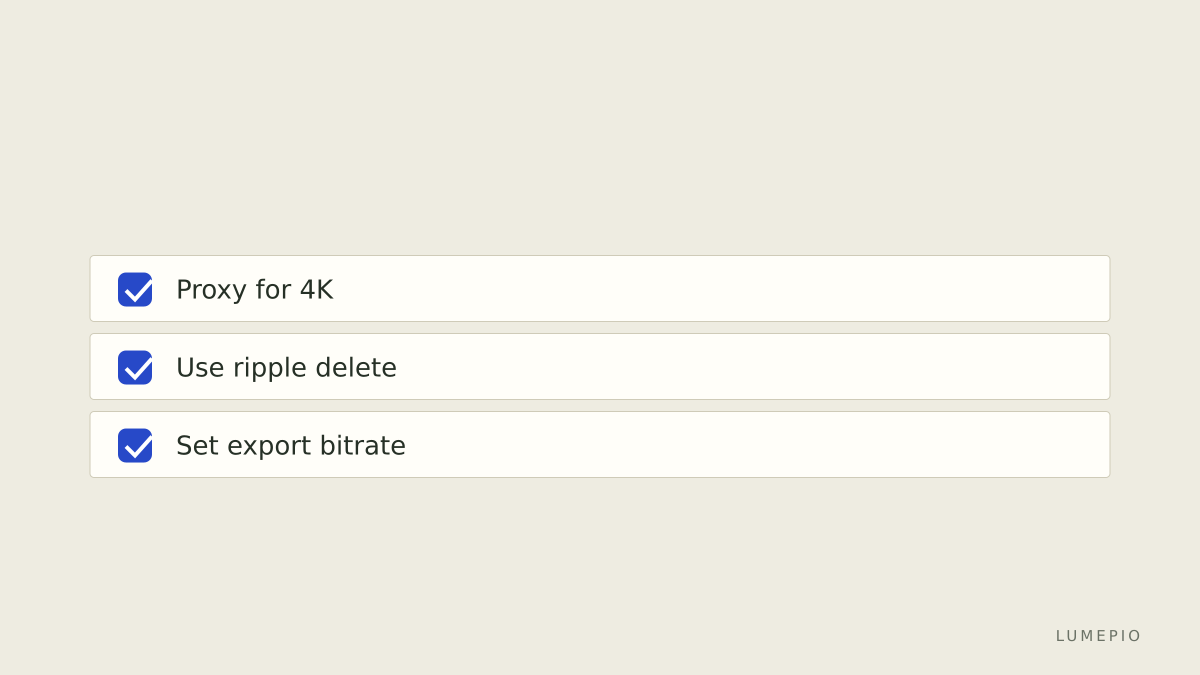
Choose software by task frequency, output format, and learning time. If you edit 3–10 clips per day and export MP4 1080p at 30 fps for YouTube or Slack, pick an editor with fast trimming, batch export, and preset codecs. Filmora offers drag-and-drop trimming, a Proxy mode for heavy 4K files, and export presets for H.264 MP4 (see the Export dialog in Filmora's UI). Use Proxy mode when editing 4K on a laptop with 8 GB RAM.
Features that matter and where Filmora stands
Timeline editing and trimming: Filmora has magnetic-like snapping, drag-to-trim, and ripple delete shortcuts (Ctrl+Shift+Delete). These speed simple daily edits.
Titles and templates: the Effects Store and built-in Title library include animated intros and lower-thirds; use them to match a 10–30 second brand intro.
Audio tools: Filmora offers basic noise reduction and an audio ducking slider under Audio > Tools; it lacks advanced spectral repair.
Performance: in Preferences > Performance you can enable hardware acceleration (Intel/AMD/NVIDIA) and set proxy files for high-resolution media.
Export options: Filmora exports MP4 H.264, MOV, and presets for Vimeo and YouTube; choose 1080p, 8 Mbps for standard uploads.
Pricing, limits and editions
Below are typical plans and technical limits drawn from official pricing and product pages, with prices shown as found at the time of checking.
Plan name | Price (USD) | Concurrent devices | Watermark on trial | Source |
|---|---|---|---|---|
Annual Individual | 49.99 / year | 1 device | No (paid) | https://www.wondershare.com/buy/filmora.html |
Perpetual License | 79.99 one-time | 1 device | No (paid) | https://www.wondershare.com/buy/filmora.html |
Business | Contact sales | Per quote | No (paid) | https://www.wondershare.com/buy/filmora.html |
Table notes: export formats include H.264 MP4 and HEVC depending on system codec support (see Filmora product page). Trial mode adds a watermark to exports (source: official pricing page).
Typical daily workflows with concrete steps
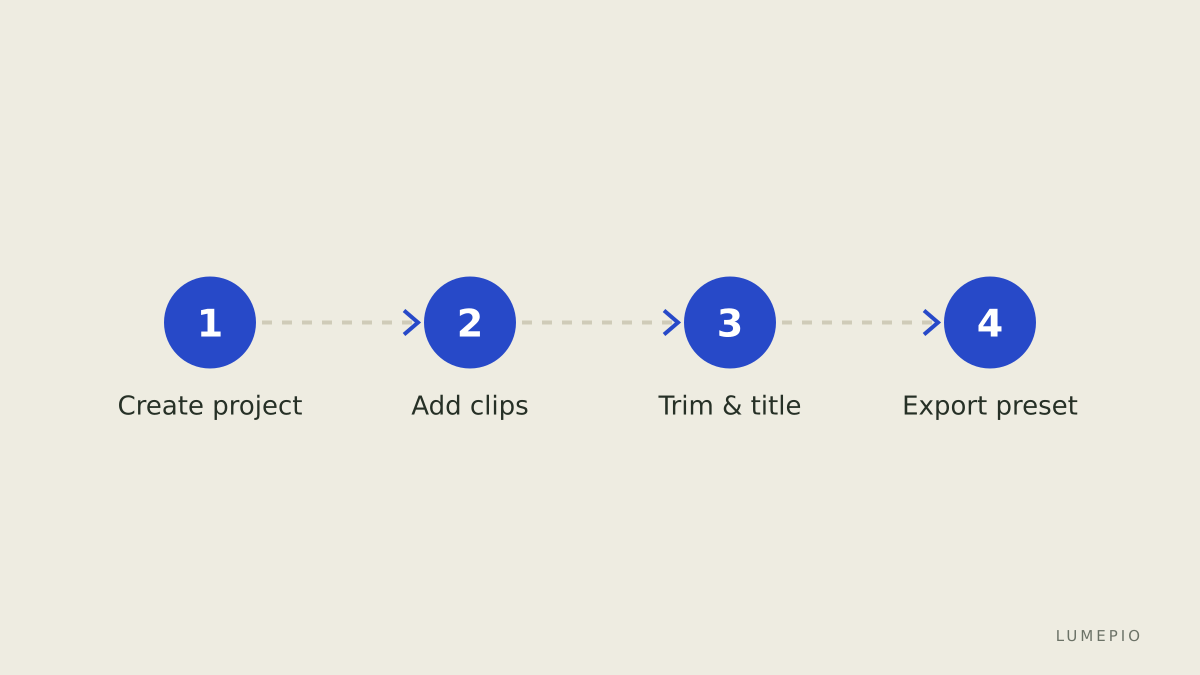
Create a new Project with 1920x1080, 30 fps in Project Settings.
Drag camera clips to Timeline; enable Proxy mode from Preferences if clips are 4K and your laptop has 8 GB RAM or less.
Use Ripple Delete (Ctrl+Shift+Delete) to remove unwanted segments quickly.
Add a Title template from Titles > Openers; adjust text and duration to 3–6 seconds.
Open Export, pick YouTube 1080p preset, set bitrate ~8 Mbps, and click Export.
These steps map to common daily needs: trimming, titling, and fast export to a hosted platform.
Mistakes to avoid and one honest limitation
Don’t ignore Project Settings: importing 4K into a 1080p project will force downscale and may create extra work.
Do not rely on Filmora for multi-camera angle sync beyond simple manual lining; it lacks advanced multicam features.
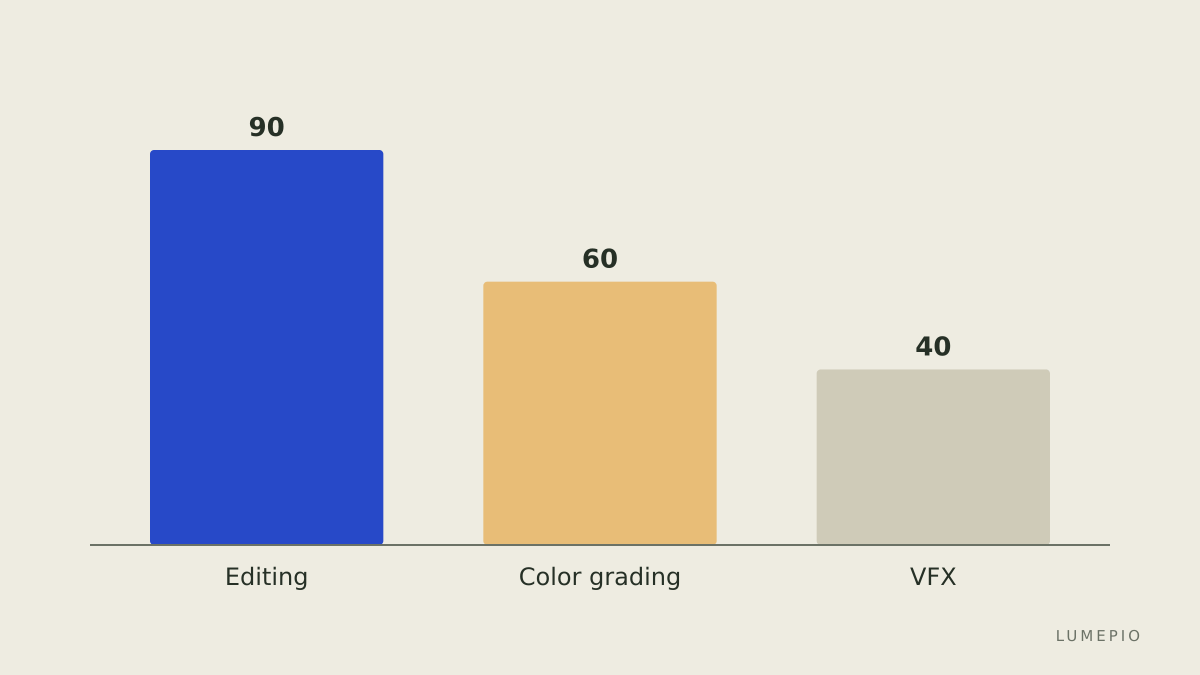
One honest limitation: Filmora is not designed for node-based compositing or high-end color grading, so it is not the best choice for cinema-level color work. An alternative for those needs is DaVinci Resolve.
When to pick Filmora – decision checklist
If you edit daily 1–10 short clips and need fast trimming, use Filmora.
If you require advanced color nodes or heavy VFX, choose another app.
If you want templates, quick titles, and easy social exports, Filmora fits the task.
Sources and further reading
This guide is built from public product pages and independent coverage; consult the official Filmora product page for feature lists and the pricing page for current plans. See the Wondershare product page for technical details and support documentation.
Official Filmora product page: https://www.wondershare.com/filmora-video-editor/
Official pricing and license details: https://www.wondershare.com/buy/filmora.html
Independent writeup and context: https://www.pcmag.com/reviews/wondershare-filmora
Support and tutorials: https://support.wondershare.com/filmora
Final recommendation: choose Wondershare Filmora if your daily task is producing short, edited videos for web and social platforms and you value templates and quick exports. For teams or pro color work, consider other specialized software. See the Wondershare support pages for activation steps and system requirements, and consult the pricing page before purchasing. Wondershare Filmora can speed routine edits; evaluate it against the decision checklist above and try the trial to confirm fits with your hardware and output needs.